
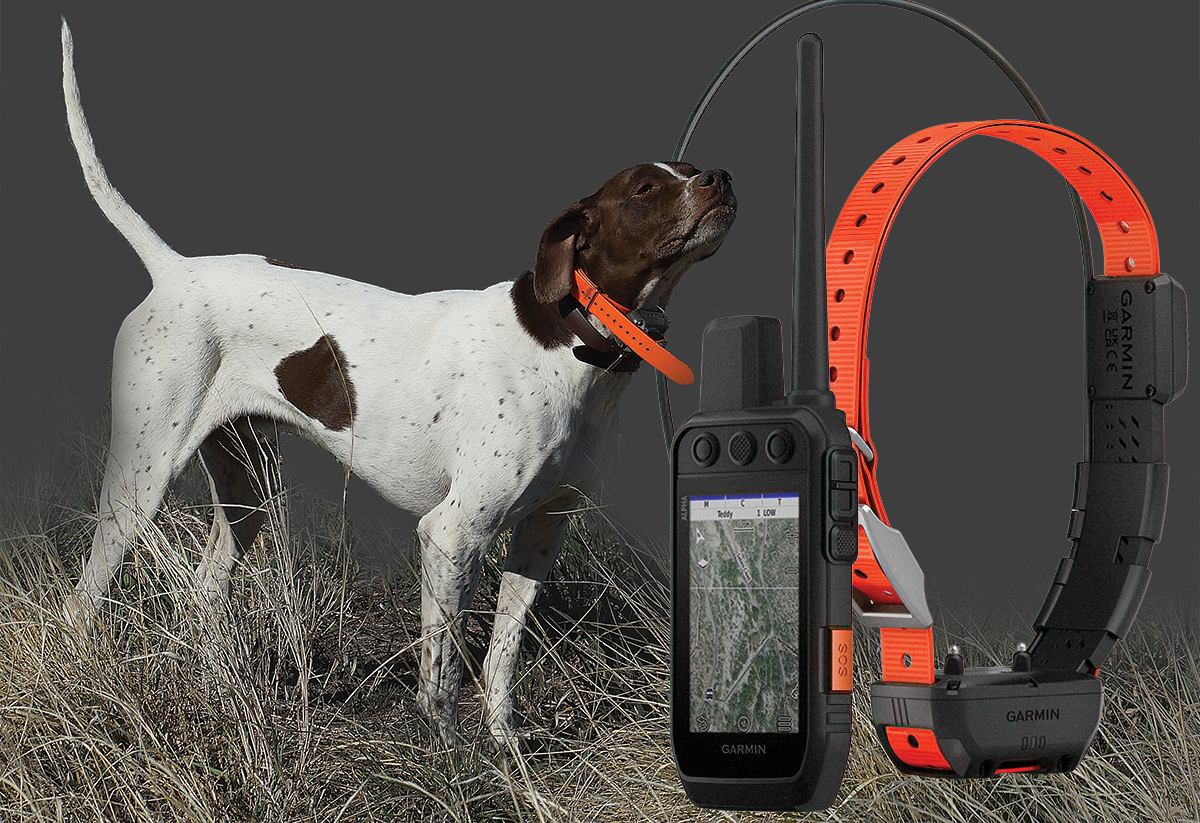
How to Charge, Pair, and Configure Your Alpha 300 and TT25 or T20 Collar So the System Works When It Counts
Opening morning, you pull up to the first field and the last thing you want is a collar that won't pair. That problem gets solved at home, weeks before the season opens. The Alpha 300 is not a complicated system, but there are steps that need to happen before opening day so the gear is invisible when it counts. Do them now and you won't think about the system again until you need it.
This guide walks through the complete setup sequence for the Alpha 300 with the Alpha TT25 and Alpha T20 collars. Every procedure is sourced directly from Garmin's owner's manuals and product pages, with sources noted throughout. If you are still working through the buying decision, start with our Garmin system comparison and our GPS range guide first.
Correct Setup Sequence
- 1. Charge the handheld and collars fully before first use
- 2. Update the handheld software over Wi-Fi
- 3. Pair each collar to the handheld using MURS/VHF wireless pairing (Method 1)
- 4. Connect each paired collar to your home Wi-Fi network through the handheld, then let it update on the charger
- 5. Fit the collar correctly on the dog
- 6. Download offline maps and satellite imagery for your hunting area
- 7. Enable dynamic tracking per dog
- 8. Run the dog in the collar during conditioning before the season opens
Step 1: Charge the Handheld
Charge the handheld fully before first use. A fully depleted battery takes about 4 hours to charge.
- Lift the weather cap on the back of the handheld to expose the USB port.
- Plug the small end of the USB-C cable into the port on the device.
- Plug the other end into a power source.
The display shows the current battery charge level while charging. Make sure the USB port and the area around the weather cap are thoroughly dry before connecting. The handheld will not charge outside its approved temperature range.
Source: Garmin Alpha 300 with Training Owner's Manual, "Charging the Handheld Device" (garmin.com). Handheld battery life up to 55 hours per Garmin Alpha 300 product specifications.
Step 2: Charge the Collars
Charge each TT25 or T20 collar fully before first use. A fully depleted collar battery takes about 5 hours to charge.
- Make sure the contacts on the collar and the area around the charging clip connection are thoroughly dry before connecting.
- Snap the charging clip onto the collar device.
- Plug the small end of the USB cable into the port on the charging clip.
- Plug the other end into a power source. The status LED on the collar turns solid red while charging.
- When the status LED turns solid green, the collar is fully charged. Remove the charging clip.
The TT25 standard battery runs up to 68 hours on dynamic tracking. The extended battery pack runs up to 136 hours.
Source: Garmin Alpha 300 with Training Owner's Manual, "Charging the Dog Collar Device" (garmin.com). Battery life figures per the Garmin Alpha TT25 product page at Dogs Unlimited.
Step 3: Update the Handheld Software
Update the handheld over Wi-Fi before pairing any collars. The collar Wi-Fi setup requires the collar to already be paired to the handheld, so the handheld update comes first.
- Power on the handheld and go outside or near a window to acquire satellite signals.
- Go to Settings › Wi-Fi and connect to your home network.
- The handheld checks for available updates automatically and installs them.
Garmin pushes firmware fixes, connectivity improvements, and map updates throughout the year. A device fresh from the factory may be running software from months before it was purchased. Run this update now and you will not have to think about it again until next preseason.
Source: Garmin Alpha 300 with Training Owner's Manual, "Connecting to a Wireless Network" and "Updating the Software" (garmin.com).
Step 4: Pair the Collars to the Handheld
The Alpha 300 supports three methods for adding a collar. For initial home setup with your own collars, use Method 1. Methods 2 and 3 are for adding another hunter's dog in the field.
Method 1: MURS/VHF Wireless Pairing
Use this when the collar and handheld are in the same room. This is the method for pairing your own collars before leaving home.
- Hold the power button on the collar for about 2 seconds until it emits two series of beeps, then release. The status LED flashes blue. The collar is now in pairing mode.
- On the handheld, select Dog List › Add Dog › Pair Collar and follow the on-screen instructions.
- When pairing is complete, enter the dog's name and select the checkmark.
- Select a beacon color for that collar's LED lights. Seven options are available: yellow, magenta, cyan, white, green, red, and blue. Running multiple dogs, assign each a different color so you can tell them apart in low light.
The handheld stores up to 250 collars in the dog list with up to 20 active at once. Pair every collar you own in a single session. Switching active dogs at the truck is a quick selection from the list, not a pairing process each time.
Source: Garmin Alpha 300 with Training Owner's Manual, "Adding a Dog to the Alpha Navigator Using Wireless Pairing" and "Methods to Add a Dog Collar Device to a Handheld Device" (garmin.com).
Method 2: ANT+ Wireless Sharing
Use this when both handhelds are within 10 feet of each other in the field. This is a two-handheld operation, with the dog owner sharing from their handheld while the other hunter receives on theirs at the same time.
On the dog owner's handheld:
- Select Dog List.
- Select the dog to share.
- Select the share icon, then select Share Wirelessly.
- Select Track Only to allow the other hunter to track location only, or Track and Control to allow them to also deliver training commands.
On the receiving hunter's handheld, at the same time:
- Select Dog List › Add Dog › Pair Collar and follow the on-screen instructions to receive the shared dog information.
Source: Garmin Alpha 300 with Training Owner's Manual, "Sharing a Dog Wirelessly" (garmin.com).
Method 3: Track and Control Codes
Use this when the dogs are already loose and the handhelds cannot be brought together. The collar owner finds the codes on their handheld and reads them to you over the radio or by phone.
The collar owner, to find the codes:
- Select Dog List.
- Select the dog. The track code and control code are displayed under the dog's name. Read those numbers to the other hunter.
The receiving hunter, to add the dog by code:
- Select Dog List › Add Dog › Enter Track or Control Code.
- Enter the code and select the checkmark. The track code allows you to track the dog's location only. The control code allows you to both track and deliver training commands.
- Enter the dog's name and select the checkmark.
Write your track and control codes down before you leave home and keep them with your gear. If a dog gets loose in unfamiliar country, those codes let any nearby Alpha user add your dog to their handheld immediately.
Source: Garmin Alpha 300 with Training Owner's Manual, "Adding a Dog Using the Track and Control Codes" and "Finding the Dog ID and Track and Control Codes" (garmin.com).
Step 5: Connect the Collars to Wi-Fi and Update
Now that each collar is paired and showing in the dog list, you can connect it to your home Wi-Fi network for software updates. This step must come after pairing because the collar Wi-Fi setup is accessed through the handheld's dog list.
- Make sure the handheld is connected to your home Wi-Fi network and both the handheld and collar are powered on and within range of each other.
- On the handheld, select Dog List.
- Select the dog.
- Select the menu icon, then select Collar Wi-Fi Setup and follow the on-screen instructions. The collar scans for nearby networks and connects to the one you select.
- Once connected, put the collar on its charger within range of your Wi-Fi network. After 25 minutes on the charger, the collar checks for available updates and installs them automatically.
Repeat for every collar in your system. Do not disconnect the collar from the charger while an update is in progress.
Source: Garmin Alpha TT25 Owner's Manual, "Setting Up Wi-Fi for the Dog Collar Device" (garmin.com). The manual confirms the collar must be paired to the handheld before Wi-Fi setup can be completed.
Step 6: Fit the Collar
The TT25 and T20 are universally sized to fit large and small breeds on the same collar. For the TT25, proper fit is not optional. Contact points that do not make consistent skin contact deliver inconsistent stimulation, and that makes training harder and is frustrating to troubleshoot when the real problem is how the collar is sitting on the dog.
- Position the collar with the communication antenna pointing up, the GPS antenna facing up, the LEDs facing forward, and the contact points against the neck.
- Place the collar around the middle of the dog's neck.
- Tighten the strap so it is snug and will not rotate or slide on the dog's neck, then fasten the buckle. The dog must still be able to swallow food and water normally. Watch the dog's behavior to confirm the collar is not too tight.
- Wiggle the device to work the contact points through the dog's coat to skin. The contact points must touch skin to be effective.
- If the strap is too long, cut off the excess leaving at least 3 inches to spare. Mark the hole you used to fasten the buckle for future reference.
Garmin's manual specifies the collar should not be worn for more than 16 hours in any 24-hour period. Remove it for at least 8 hours out of every 24 to prevent contact point irritation on the skin.
Check fit at the start of every season. Dogs change weight between summer and hunting season, and a collar that fit correctly in April may not be right in October.
One additional note from the manual: if you apply flea or tick spray to the dog, make sure it is completely dry before putting the collar on. Harsh chemicals can damage the plastic components and the collar strap.
Source: Garmin Alpha 300 with Training Owner's Manual, "Fitting the Collar on Your Dog" (garmin.com).
Step 7: Download Maps for Your Hunting Area
The Alpha 300 comes preloaded with TopoActive maps that work without cell service. For most hunters that is enough. Topo detail is solid, terrain features render clearly on the 3.5-inch screen, and you can read ridges, drainages, and cover breaks at a glance.
Satellite imagery is a separate download and available in two tiers.
Free satellite imagery is available without any subscription. Connect to Wi-Fi, go to Map › Download Maps, select your hunting area, and choose Add Satellite Imagery. This gives you real-world aerial views of your ground. For new country it is worth having before the first cast.
Outdoor Maps+ is Garmin's premium subscription tier, adding BirdsEye satellite imagery, public land boundaries, landowner names, hunting unit boundaries, and enhanced topo data. It requires an active paid subscription through Garmin. If you hunt public land across multiple states, the landowner and boundary data makes it worth the cost.
Download maps and satellite imagery at home over Wi-Fi before you leave. Cell service in the field is not guaranteed, and a map that has not been downloaded is a blank screen when you need it.
Source: Garmin Alpha 300 Owner's Manual, "Downloading Maps" (garmin.com): "To download free satellite map data without a subscription, select Add Satellite Imagery. To download premium maps and activate your Outdoor Maps+ subscription for this device, select Check Subscription." Outdoor Maps+ subscription pricing and terms at garmin.com/outdoormaps.
Step 8: Enable Dynamic Tracking
Dynamic tracking automatically adjusts the GPS update rate based on what the dog is doing. Running hard, the update rate stays as fast as every 2.5 seconds. When the dog slows, stops, or goes to sleep in the kennel, the rate slows automatically to conserve battery. You get the information you need without burning battery life unnecessarily.
To enable dynamic tracking for each dog:
- Select Dog List.
- Select the dog.
- Select Update Rate › Dynamic.
Repeat for every collar in your system. The difference in battery life is significant.
| Update Rate Setting | TT25 Standard Battery | TT25 Extended Battery |
|---|---|---|
| Dynamic tracking | Up to 68 hours | Up to 136 hours |
| Fixed 2.5-second rate | Up to 25 hours | Up to 50 hours |
| Fixed 2-minute rate | Up to 84 hours | Up to 168 hours |
Battery figures per the Garmin Alpha TT25 product page at Dogs Unlimited. Actual life varies with temperature, terrain, and dog activity.
Source: Garmin Alpha 300 with Training Owner's Manual, "Using a Dynamic Update Rate" (garmin.com).
Field Features Worth Knowing Before Opening Day
The Alpha 300 has several hunting-specific features that are easy to miss in the manual but worth knowing before you need them in the field.
Mark Your Truck Location
When you park and let the dogs out, mark your truck location as a waypoint on the map. If you get turned around in big country or the dogs end up on the far side of a section, you have a pin to navigate back to. Access it through the hunting menu on the handheld.
Source: Garmin Alpha 300 with Training Owner's Manual, "Marking Your Truck Location" (garmin.com).
Mark a Covey
When you flush a covey or find birds, you can drop a waypoint on that location directly from the handheld. Over the course of a season those marks build into a picture of where birds hold on your hunting ground.
Source: Garmin Alpha 300 with Training Owner's Manual, "Marking a Covey" (garmin.com).
Active Hunt Metrics
The hunt metrics screen shows real-time data for each dog: distance covered, speed, and time afield. Over a full season this is useful for managing conditioning. A dog that was covering 12 miles a day in October and covering 7 in December either has a fitness issue or the birds are holding tighter. The data gives you something to look at beyond feel.
Source: Garmin Alpha 300 with Training Owner's Manual, "Active Hunt Metrics" (garmin.com).
Channel View
Both the handheld and collars broadcast on individual VHF channels identified by unique IDs. If you are hunting near other Alpha users, Channel View lets you see what channel your devices are on and change to a clear one if needed.
- From the home screen, select the home icon, then Channel View.
- Select My Devices to see your current channel.
- Use the arrow keys to select a new ID if interference is a problem.
- Select Yes, then select the dog, then select OK. The collar device must be active and tracking on your handheld to complete the channel change.
Source: Garmin Alpha 300 with Training Owner's Manual, "Using the Channel View" (garmin.com).
Rescue Mode
Rescue Mode slows the collar's GPS update rate to conserve battery. Use it at the end of a long hunt when the collar is running low, or any time a dog might get out of range. You do not have to wait for a problem, and turning it on proactively at the end of the day is a reasonable practice.
- Select Dog List.
- Select the dog.
- Select the menu icon, then select Rescue Mode.
Once on, Rescue Mode stays on until you turn it off manually using the same steps. When the collar battery drops below 25%, it updates only once every 2 minutes regardless of your update rate setting. Rescue Mode extends the useful window by reducing power consumption before the battery reaches that threshold.
Source: Garmin Alpha 300 with Training Owner's Manual, "Turning On Rescue Mode" (garmin.com). The 25% battery threshold and 2-minute update rate are stated directly in the manual.
Collar LED Lights
The TT25 and T20 LED beacon lights can be turned on and the color changed remotely from the handheld without touching the collar. Seven colors are available: yellow, magenta, cyan, white, green, red, and blue. Useful for identifying which dog is which in low light, or for making a dog visible when working near a road.
Source: Garmin Alpha 300 with Training Owner's Manual, "Turning On the Collar Light" (garmin.com). LED colors per the Garmin Alpha TT25 product page at Dogs Unlimited.
The Beeper Battery Pack
Both the TT25 and T20 accept an optional beeper battery pack that replaces the standard battery and adds a built-in speaker with five selectable sounds: single beep, double beep, triple beep, low beep, and a hawk call. The sounds tell you whether the dog is running, on point, or stationary, and carry up to 500 yards. It runs up to 78 hours on dynamic tracking.
It earns its keep in quail brush, grouse woods, and thick CRP, where stopping to look at a screen breaks your stride. An audible point alert is faster. The pack swaps with the standard battery in seconds. If you hunt a mix of open and heavy cover, carry both and switch based on the day.
Source: 78-hour battery life and sound options per the Garmin Alpha TT25 with Tracking Beeper product page at Dogs Unlimited. 500-yard audible range per Garmin Alpha 300 with Training Owner's Manual, "A Third Option: Add a Beeper" (garmin.com).
Step 9: Run the Dog in the Collar Before the Season
Do not put a GPS collar on a dog for the first time on opening day. The weight and feel of the module on the neck is new information, and a dog focused on what is sitting on it is a dog that is not hunting. Put the collar on during conditioning walks four to six weeks before the season. Let the dog wear it in the kennel, on training sessions, around the yard. By opening day it should be something the dog does not notice.
If you are running the TT25 and plan to use stimulation in the field, introduce it during training on commands the dog already knows well, not the first time you reach for a button on a wild bird. Start at the lowest effective level. The collar works exactly the same way in training as it does in the field.
For the full preseason conditioning program, see our off-season conditioning guide. GPS collar setup fits naturally into the same window.
What to Confirm at the Truck on Hunt Day
- Handheld charged the night before
- Collar battery level confirmed on the handheld dog list screen
- Both devices acquiring satellite signals before dogs are released, give them 60 seconds outside the truck
- Hunting area map confirmed loaded before driving out of cell range
- Dog name and beacon color correct for the collar on each dog
- Channel View checked if other Alpha users are hunting nearby
- TT25 contact points confirmed against skin, run a finger under the collar before the dogs go
- Truck location marked as a waypoint before leaving the vehicle
Frequently Asked Questions
Do I need to pair the Alpha 300 and collar every time I use them?
No. Pairing is a one-time process per collar. Once paired, the handheld stores it in the dog list and you select which dogs are active at the start of each hunt. The only time you re-pair is when adding a new collar or after a full device reset.
What is the correct order to set up the Garmin Alpha 300 system?
Charge both the handheld and collars fully first. Update the handheld software over Wi-Fi. Then pair each collar using MURS/VHF wireless pairing (Dog List › Add Dog › Pair Collar). Once collars are paired and appear in the dog list, connect each one to your home Wi-Fi network through the handheld using Dog List › select the dog › menu icon › Collar Wi-Fi Setup, and let them update on the charger. Then fit the collar on the dog, download maps, and enable dynamic tracking.
How tight should the Alpha TT25 or T20 collar fit?
The collar should be snug and should not rotate or slide on the dog's neck. The dog must still be able to swallow food and water normally. Position the collar with the communication antenna pointing up, GPS antenna facing up, LEDs facing forward, and contact points against the neck. Place it around the middle of the neck, tighten and fasten the buckle, then wiggle the device to work the contact points through the coat to skin. If the strap is too long, cut it leaving at least 3 inches to spare. Per Garmin's manual, remove the collar for at least 8 hours out of every 24 to prevent contact point irritation.
What is dynamic tracking on the Garmin Alpha 300?
Dynamic tracking automatically adjusts the GPS update rate based on what the dog is doing. Running hard, it updates as fast as every 2.5 seconds. Stopped or kenneled, the rate slows to conserve battery. To enable it: select Dog List, select the dog, select Update Rate, then Dynamic. The TT25 standard battery runs up to 68 hours on dynamic tracking; the extended battery runs up to 136 hours. Source: Garmin Alpha 300 with Training Owner's Manual, "Using a Dynamic Update Rate."
How do I connect the TT25 or T20 collar to Wi-Fi for software updates?
The collar must be paired to the handheld first before Wi-Fi can be configured. Once paired and showing in the dog list: select Dog List, select the dog, select the menu icon, then select Collar Wi-Fi Setup, and follow the on-screen instructions. The collar scans for nearby networks and connects to the one you select. Once connected, put the collar on its charger within range of your Wi-Fi network. After 25 minutes on the charger, the collar checks for available updates and installs them automatically. Source: Garmin Alpha TT25 Owner's Manual, "Setting Up Wi-Fi for the Dog Collar Device."
Do I need cell service to use the Alpha 300 maps in the field?
No. The Alpha 300 comes preloaded with TopoActive maps that work offline. Free satellite imagery and Outdoor Maps+ premium content both work offline once downloaded over Wi-Fi at home. Source: Garmin Alpha 300 Owner's Manual, "Downloading Maps."
How do I share my dog's collar with another hunter's Alpha handheld?
It is a two-handheld operation, with both handhelds within 10 feet of each other. On the dog owner's handheld: select Dog List, select the dog, select the share icon, then Share Wirelessly, then choose Track Only or Track and Control. At the same time, the receiving hunter selects Dog List › Add Dog › Pair Collar on their handheld. If the dogs are already loose and the handhelds cannot be brought together, the collar owner finds the codes by selecting Dog List and selecting the dog. The track code and control code are displayed under the dog's name. The receiving hunter enters them under Dog List › Add Dog › Enter Track or Control Code. Source: Garmin Alpha 300 with Training Owner's Manual, "Sharing a Dog Wirelessly" and "Finding the Dog ID and Track and Control Codes."
What is the Channel View on the Alpha 300?
Channel View shows the VHF channels your handheld and collars are broadcasting on, and lets you change channels to avoid interference from other Alpha systems nearby. From the home screen, select the home icon, then Channel View. Select My Devices to see your current channel, use the arrows to pick a new ID if needed, select Yes, select the dog, then OK. The collar must be active and tracking on the handheld to complete the channel change. Source: Garmin Alpha 300 with Training Owner's Manual, "Using the Channel View."
What is Rescue Mode on the Alpha 300?
Rescue Mode slows the collar's GPS update rate to conserve battery. Use it at the end of a long hunt or any time a dog might get out of range. To enable it: select Dog List, select the dog, select the menu icon, then select Rescue Mode. Once on, it stays on until you turn it off manually the same way. When the collar battery drops below 25%, it updates only once every 2 minutes regardless of update rate setting. Source: Garmin Alpha 300 with Training Owner's Manual, "Turning On Rescue Mode."
Can I use my existing TT15 or T5 collars with the Alpha 300?
Yes. The Alpha 300 is backward compatible with TT15, TT15 Mini, TT15X, TT10, T5, T5 Mini, and T5X collars. Tracking and training functions work, but you will not get dynamic tracking or Wi-Fi updates with the older collars.
Before pairing older collars with the Alpha 300, update their firmware first. Unlike the TT25 and T20, older collars do not support Wi-Fi updates. They require Garmin Express on a computer and a USB cable. Download Garmin Express at garmin.com, connect the collar via USB, and install any available updates before pairing with the Alpha 300. Garmin has pushed GPS performance improvements to TT15 and T5 firmware over the years, and a collar running outdated software may not track as reliably with the Alpha 300. Source: Garmin support pages for TT15 and T5 software updates (support.garmin.com).
Related Resources
- Garmin PRO 550 Plus vs. Alpha 300 vs. Alpha 300i: Which One Fits Your Hunt?
Still deciding which system to buy? Start here. - GPS Dog Tracking Range: How Much Do You Actually Need?
How terrain, species, and your dog's habits determine the range you need. - Garmin Alpha 300 Handheld
Shop the Alpha 300 handheld at Dogs Unlimited. - Garmin Alpha TT25 Dog Collar
Track and train collar. 9-mile range, dynamic tracking, up to 68-hour standard battery. - Garmin Alpha T20 Dog Collar
Track-only collar for finished dogs that do not need training cues in the field. - Garmin Alpha TT25 with Tracking Beeper
The TT25 with the beeper battery pack. Hear your dog's status in heavy cover without checking a screen. - Garmin Accessories
Extended battery packs, replacement flex bands, and spare charging cables. - Off-Season Conditioning for Hunting Dogs
Build your dog's fitness and get your gear sorted in the same preseason window.
As always, our goal here at Dogs Unlimited is to help you Make Your Good Dog Better, starting with gear that works the way it's supposed to on opening day.